 Database Protection Using Oracle Data Guard Database Protection Using Oracle Data Guard
Aaron Diehl
As the saying goes, the road to hell is paved with good intentions. Much too can be said about database recovery despite the best laid disaster recovery plans. Even with the most recent backups and sophisticated software available, sometimes there is just nothing like having a second copy of the database at your fingertips. In this article, I will discuss implementation and monitoring strategies of Oracle's Data Guard services that can help make database recovery less painful.
Data Guard is available out of the box with the Oracle database product and provides disaster recovery, data protection and high-availability features. These features are obtained by creating a network of up to ten database servers (1 primary and n-1 standby) that are transactional consistent copies. Often, these copies are geographically separate and maintained by Oracle using the "Log Transport" and "Log Apply" services. In short, as the primary database's redo log is filled, a copy of the transactions are sent down the wire via Oracle Net to one or more standby databases where a log apply process makes changes to its copy.
In the event of a disaster (natural or otherwise), a standby database can be promoted to a primary database and resume operations in a matter of minutes. With Data Guard, you also have a high-availability environment in place, because you can interchange primary and secondary roles using a "Switch Over" operation. This is an extremely useful feature, because maintenance or upgrade operations that traditionally required downtime can now be implemented without disruption to the user community.
Data protection is available in three different modes of operation: maximum protection, maximum availability, and maximum performance. The default is maximum performance, and it allows the primary database to continue processing even if the standby database fails to acknowledge receipt of redo data (e.g., network failure).
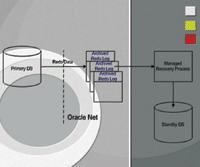
Standby databases can be configured as either "physical" or "logical" copies. The focus of this article will be on the configuration of a physical standby database, however, a brief explanation of each follows. A physical standby is a "block for block" copy of the primary and is not normally open to users. The physical standby database is updated by the Managed Recovery Process (MRP) that applies changes directly from the archived redo log files (Figure 1). The database can be opened as a READ ONLY copy; however, managed recovery operations must be stopped to do this.
A logical standby database is configured initially as an identical copy of the primary, but structural changes can be made to the database (with exception to target replicated tables). The logical standby database is updated by converting the data from the archived redo log files into SQL statements (Logical Standby Process -- LSP) that are applied to the target tables of the database. In a logical standby database, target tables are available for read-only operations. The use of a logical standby is ideal where you want to maximize performance and data protection of your primary system. The logical standby can accomplish this because it can apply transaction changes to its copy of the database while hosting your reporting operations (Figure 2).
Configuration
The following steps detail what is required to configure an Oracle Data Guard environment. With respect to both primary and standby databases, it is assumed that you have DBA privileges (belong to the dba group), have all required Oracle environment variables set (e.g., $ORACLE_HOME, $ORACLE_SID, path includes $ORACLE_HOME/bin), and your database account uses OS authentication. Also, the example below is very simplistic for demonstration purposes.
Prepare the Primary Database
Connect to the primary database using sqlplus as the sysdba and enable forced logging. Place the primary database in FORCE LOGGING mode by issuing the following commands:
$ sqlplus '/ as sysdba'

SQL > ALTER DATABASE FORCE LOGGING;
Next, enable archiving and define the local archiving destinations. For this step, it is assumed that the database is in AUTOMATIC ARCHIVELOG mode and that the local destination is in the $ORACLE_ADMIN/$ORACLE_SID/arch directory. Set the local archiving destinations by issuing the following commands:
SQL> ALTER SYSTEM SET LOG_ARCHIVE_DEST_1 =  \
  'LOCATION = /opt/oracle/admin/prod/arch MANDATORY' SCOPE=BOTH;
Create the Standby Database from the Primary
From the primary database, identify the database data files by issuing the following SQL command.
SQL> SELECT NAME FROM V$DATAFILE;
The listing should look similar to the following.
NAME
---------------------------------------
/opt/oracle/oradata/prod/system01.dbf
/opt/oracle/oradata/prod/rbs01.dbf
/opt/oracle/oradata/prod/users01.dbf
/opt/oracle/oradata/prod/temp01.dbf
Next, create a backup copy of the data files. For this step, it is assumed that the production database has a maintenance window that permits the downtime required to back up the database. If not, a "hot backup" script should be used to back up the required data files. From the SQL prompt, issue the following command.
SQL> SHUTDOWN IMMEDIATE;
From the Unix shell prompt, issue the following commands to back up the data files. These steps assume you are copying the data to a temporary directory.
$ cd /opt/oracle/oradata/prod
$ cp system01.dbf rbs01.dbf users01.dbf temp01.dbf /tmp
Restart the Database
You can restart the database by issuing the following SQL command:
SQL> STARTUP;
The next step is to create the required configuration files for the standby database. On the primary database, create a standby control file and a parameter file by issuing the following SQL commands. It is important to note that the control file must be created after the backup.
SQL> ALTER DATABASE CREATE STANDBY CONTROLFILE AS \
  '/tmp/standby01.ctl';
SQL> CREATE PFILE='/tmp/initSTANDBY.ora' FROM SPFILE;
Create a deliverable copy of the database, control, and parameter files for the standby system. Use operating system commands to create a backup tape or tar ball to send to the standby machine. It is assumed that a "software-only" installation of Oracle is complete on the standby machine and the directory structure is the same.
Configure the Oracle Instance on the Standby Machine (ARCH Mode)
Once the database files have been received, they can be extracted from the media and placed in the appropriate directories. Next, you will need to modify the initialization file (initSTANDBY.ora) file specifically for the standby copy of the database. The following are the initialization parameters (at a minimum) governing Data Guard that must be added or modified.
*.control_files='/opt/oracle/oradata/prod/standby01.ctl'
*.fal_server='prod.primary'
*.fal_client='prod.standby'
*.log_archive_dest_1='LOCATION=/opt/oracle/admin/prod/arch/'
*.log_archive_dest_2='SERVICE=prod.primary'
*.log_archive_dest_state_2='DEFER'
*.log_archive_start='TRUE'       ### If using LGWR below
*.standby_archive_dest='/opt/oracle/admin/prod/arch/standby'
*.standby_file_management='AUTO'
For more information on Data Guard Initialization parameters, please consult Chapter 11 of the "Oracle Data Guard Concepts and Administration" manual.
Configure Oracle Network Services
Listener Services
On both the primary and standby servers, Oracle Listener Services must be defined (if not already) that are consistent with the service names referenced in the FAL_SERVER and FAL_CLIENT parameters above.
The following is an example of the listener definitions for the standby machine. In this example, this machine is configured as the FAL_CLIENT from the Oracle Data Guard perspective. The listener parameters are defined in the listener.ora file located in the $ORACLE_HOME/network/admin directory.
LISTENER =
  (DESCRIPTION_LIST =
    (DESCRIPTION =
      (ADDRESS_LIST =
        (ADDRESS = (PROTOCOL = IPC)(KEY = EXTPROC))
      )
      (ADDRESS_LIST =
        (ADDRESS = (PROTOCOL = TCP)(HOST = localhost)(PORT = 1521))
      )
    )
    (DESCRIPTION =
      (PROTOCOL_STACK =
        (PRESENTATION = GIOP)
        (SESSION = RAW)
      )
    )
  )

SID_LIST_LISTENER =
  (SID_LIST =
    (SID_DESC =
      (SID_NAME = PLSExtProc)
      (ORACLE_HOME = /opt/oracle/product/9.2.0)
      (PROGRAM = extproc)
    )
    (SID_DESC =
      (GLOBAL_DBNAME = prod.standby)
      (ORACLE_HOME = /opt/oracle/product/9.2.0)
      (SID_NAME = prod)
    )
Once the Listener Services have been defined, you may apply the updates by stopping and restarting the listener service. As the Oracle user, issue the following command from the Unix command prompt:
$ lsnrctl restart
Transport Name Services
On both the primary and standby servers, Oracle Name Services must be defined similarly to Listener Services. In this example, the primary database is referenced as the FAL_SERVER from the Oracle Data Guard perspective. The connection parameters are defined in the tnsnames.ora file located in $ORACLE_HOME/network/admin directory.
prod.primary=
  (DESCRIPTION =
    (ADDRESS_LIST =
      (ADDRESS = (PROTOCOL = TCP)(HOST = primary_db)(PORT = 1521))
    )
    (CONNECT_DATA =
      (SID=prod)(GLOBAL_NAME=prod.primary)
    )
  )
Enable Dead Connection Detection on the Standby Database
You can enable dead connection detection on the standby database by setting the SQLNET.EXPIRE_TIME parameter to 2. This parameter is set in the sqlnet.ora file located in the $ORACLE_HOME/network/admin directory. The file should be modified and include a line like the following:
SQLNET.EXPIRE_TIME=2
Bring Oracle Data Guard Services Online
Create the Server Parameter File for the Standby Database
Use the parameter file (initSTANDBY.ora) to create the binary Oracle Server Parameter file (SPFILE). Then, start the database as a standby database and initiate managed recovery. On the standby machine, issue the following commands as the Oracle or dba user:
$ sqlplus '/ as sysdba'

SQL> CREATE SPFILE FROM \
  PFILE='/opt/oracle/admin/prod/pfile/initSTANDBY.ora';
SQL> STARTUP NOMOUNT;
SQL> ALTER DATABASE MOUNT STANDBY DATABASE;
SQL> ALTER DATABASE RECOVER MANAGED STANDBY DATABASE \
  {parallel NN} {delay MM} DISCONNECT;
The parallel option here is for the number of "Managed Recovery" processes that are used to apply the logs (Oracle recommends 2-3 times the number of physical CPUs). The delay option in minutes is used to introduce a time lag in the log apply process. This is useful to recover from a DBA "fat finger" or a batch script that goes awry.
Enable Archiving to the Standby Database
These steps must be performed on the primary database to complete the configuration of Data Guard services and enable replication to the standby database. The following SQL commands must be issued to enable Log Archiving services from the primary to the standby database:
SQL> ALTER SYSTEM SET LOG_ARCHIVE_DEST_2='SERVICE=prod.standby' SCOPE=BOTH;
SQL> ALTER SYSTEM SET LOG_ARCHIVE_DEST_STATE_2=ENABLE SCOPE=BOTH;
These settings will allow the primary database to transmit redo log files to the standby machine for processing. As configured above, the log transport method is known as archiver mode (ARCH), because the ARCH process on the primary handles sending the archive redo log down the wire upon a log switch.
To immediately start redo log forwarding, force a log switch by issuing the following SQL command on the primary database:
SQL> ALTER SYSTEM ARCHIVE LOG CURRENT;
LGWR Mode
Another method to transport logs is a configuration that utilizes the online redo Log Writer process (LGWR). In this configuration, as the primary database writes transactions to the online redo logs, it also transmits the transactions to the standby machine's redo logs. This is the "real-time" method in contrast to the ARCH mode configuration because the redo log files are concurrent at any point in time.
To enable this feature, configuration is the same as above with a couple of exceptions. On the standby machine, you'll need to add standby redo log files to the database that are the same size as those on the primary. Before starting managed recovery (ALTER DATABASE RECOVER MANAGED STANDBY DATABASE...) you can add standby redo logfiles like the following example:
ALTER DATABASE ADD STANDBY LOGFILE \
  '/opt/oracle/oradata/prod/srl01.log' SIZE 52428800;
ALTER DATABASE ADD STANDBY LOGFILE \
  '/opt/oracle/oradata/prod/srl02.log' SIZE 52428800;
ALTER DATABASE ADD STANDBY LOGFILE \
  '/opt/oracle/oradata/prod/srl03.log' SIZE 52428800;
ALTER DATABASE ADD STANDBY LOGFILE \
  '/opt/oracle/oradata/prod/srl04.log' SIZE 52428800;
On the primary machine, you'll need to configure the LOG_ARCHIVE_DEST_2 parameter slightly differently. This can be accomplished by executing the following SQL command on the primary machine:
ALTER SYSTEM SET LOG_ARCHIVE_DEST_2='SERVICE=prod.standby \
  lgwr async=20480 reopen=30 optional'
The options for this parameter specify the use of the LGWR transport in asynchronous mode using a 10MB buffer and a 30-second retry. The optional parameters specify Oracle to use optimal performance so that if there is a network outage, the primary doesn't come to a screeching halt.
Verify Standby Database is Operational
Oracle's Data Guard Concepts and Administration manual suggests querying the V$ARCHIVED_LOG view to verify that the standby database is operating correctly. While that is a good idea, for brevity we will examine the output of my included script dg_mngd_standby.sql (Listing 1).
11:10:23 idle> @dg_mngd_standby

PROCESS   CLIENT_P  SEQUENCE# STATUS           BLOCK#     BLOCKS
--------- -------- ---------- ------------ ---------- ----------
ARCH      ARCH              0 CONNECTED             0          0
ARCH      ARCH              0 CONNECTED             0          0
ARCH      ARCH              0 CONNECTED             0          0
ARCH      ARCH              0 CONNECTED             0          0
MRP0      N/A           23596 WAIT_FOR_LOG          0          0
RFS       UNKNOWN       23501 ATTACHED        1228794    1228794
RFS       ARCH          23528 ATTACHED        1228798    1228798
RFS       ARCH          23598 ATTACHED        1228798    1228798
RFS       ARCH          23599 WRITING          651264    1228798
In this particular example, you'll notice there are four background ARCHiver processes, a managed recovery process (MRP0), and four remote file service processes (RFS, although only the last one is actually doing anything). The RFS process is receiving and writing log number 23599 that is being sent by the primary's ARCH process. You'll also notice that the managed recovery process (MRP0) is waiting on log 23596. This is because this particular standby machine has managed recovery configured with a 60-minute delay. That means, as one log is applied, the next one will be applied 60 minutes later or 60 minutes after reception.
For example, if there is an activity spike that generates five logs in a 15-minute period, the first will be applied 60 minutes after reception by the standby machine and the next four will be applied in 60-minute intervals. This is in contrast to the primary server which generated and applied each about 3 minutes apart. The output depicts log size in terms of blocks. In my current assignment, the log size is 600MB; therefore log number 23599 is writing block number 651,264 or little more than half full.
Another way to verify that the standby database is working properly is to view the Oracle alert log or query the MESSAGE column from the V$DATAGUARD_STATUS view (Listing 2).
Switchover Operations
This section outlines the procedures to perform a "switchover" operation of the Oracle Data Guard environment. Switchover operations transfer Oracle Database services from a primary server to a standby server and are sometimes required for maintenance or upgrades. Switchover operations are initiated on the primary database and completed on the standby database.
Prepare the Primary Database as a Standby Database
Validate Database Status
Query the V$DATABASE view to obtain switchover status of the primary database. Results of this query should be "TO STANDBY". Issue the following SQL command to verify:
SQL > SELECT SWITCHOVER_STATUS FROM V$DATABASE;
Initiate Switchover Operation
Once the database has been verified from above, initiate the switchover operation by issuing the following SQL commands:
SQL> ALTER DATABASE COMMIT TO SWITCHOVER TO PHYSICAL STANDBY;
SQL> SHUTDOWN IMMEDIATE;
SQL> STARTUP NOMOUNT;
SQL> ALTER DATABASE MOUNT STANDBY DATABASE;
Validate Database Parameters and Adjust If Needed
Database parameters that may need to be set are as follows:
- STANDBY_ARCHIVE_DEST -- Location of archive files from primary.
- STANDBY_FILE_MANAGEMENT -- Must be set to "AUTO".
- FAL_SERVER -- Must be set to new primary server.
Promote the Standby Database to a Primary Database
Validate Database Status
Query the V$DATABASE view to obtain switchover status of the standby database. This step is required to ensure that the switchover notification was received and processed by the standby database. Results of this query should be "TO PRIMARY". Issue the following SQL command to verify:
SQL> SELECT SWITCHOVER_STATUS FROM V$DATABASE;
Note that if you have stopped managed recovery and are still getting the status of "SESSIONS ACTIVE", you can use the "with session shutdown" clause of the "alter database commit to switchover..." command below.
Complete the Switchover Operation
Once database has been verified, complete the switchover operation by issuing the following SQL commands:
SQL> ALTER DATABASE COMMIT TO SWITCHOVER TO PRIMARY;
SQL> SHUTDOWN IMMEDIATE;
SQL> STARTUP;
Validate Database Parameters and Adjust if Needed
Database parameters that may need to be set or adjusted on the new primary are as follows:
- LOG_ARCHIVE_DEST_2 -- Destination of Log Forwarding Service.
- LOG_ARCHIVE_DEST_STATE_2 -- Will need to set to "enable".
Restart Log Forwarding Services
Once the database has been placed in primary mode, Data Guard is ready to restart and apply log services.
Place New Standby in Recovery Mode
On the standby server (old primary), place the database in recovery mode so that redo logs may be received and applied to the new standby server. From the SQL prompt, issue the following command:
SQL > ALTER DATABASE RECOVER MANAGED STANDBY DATABASE \
  {parallel NN} {delay MM} DISCONNECT;
Restart Redo Log Forwarding
Restart log forwarding services by forcing a log switch on the new primary server. Issue the following SQL command:
SQL > ALTER SYSTEM ARCHIVE LOG CURRENT;
Failover Operations
This section outlines the procedures to perform a "failover" operation of an Oracle Data Guard environment. Unlike "switchover" operations, "failover" operations are not reversible. Failover operations transfer Oracle database services from a primary server to a standby server and are required to resolve data/disaster events that otherwise cannot be recovered.
Prepare the Standby Database to Resume Operations as the Primary
Identify Redo Log Gaps
Query the V$ARCHIVE_GAP view to determine whether there are any gaps in Log Apply services. Issue the following SQL command to determine. If no rows are selected, there are no gaps:
SQL > SELECT THREAD#, LOW_SEQUENCE#, HIGH_SEQUENCE#
  FROM V$ARCHIVE_GAP;
Copy and Register any Missing Log Files
If possible, copy any missing redo log files from above. Once the files have been copied, issue the following SQL command to register files:
SQL> ALTER DATABASE REGISTER PHYSICAL LOGFILE '<File_Name>';
Make sure your last log file has been applied by the MRP process before proceeding.
Initiate Failover Operation
Initiate the failover operation by issuing the following SQL commands. The first command assumes there are no redo logs to recover:
SQL> ALTER DATABASE RECOVER MANAGED STANDBY DATABASE FINISH \
  SKIP STANDBY LOGFILE;
SQL> ALTER DATABASE COMMIT TO SWITCHOVER TO PRIMARY;
SQL> SHUTDOWN IMMEDIATE;
SQL> STARTUP;
Monitoring
As discussed earlier, Oracle provides two modes of log transport, LGWR and ARCH. In my current assignment we utilize both. The primary and standby machines are geographically separate and communicate over a WAN. We utilize the LGWR method between the primary and standby servers to maintain real-time transactions. We also have the luxury of a secondary machine (not production capable) at the standby location that is configured as a cascaded standby with a time delay. This provides us with a secondary backup in the event of a "fat finger" or "rogue batch job" disaster. For that purpose, the ARCH method is used between the first standby machine and the secondary standby. Figure 3 depicts our Data Guard configuration.
Now that you know a little more about our environment, a discussion of the scripts and reports that we use follows. I hope you'll find them useful in your environment, too.
As previously demonstrated, the output of Listing 1 gives me the overall picture of what Data Guard is doing. For example, are we staying current with LGWR or have we defaulted to an ARCH process? Is MRP staying current with LGWR? How close are we to filling the current log? The listing below is an example from our first standby machine:
13:53:56 idle> @dg_mngd_standby

PROCESS   CLIENT_P  SEQUENCE# STATUS           BLOCK#     BLOCKS
--------- -------- ---------- ------------ ---------- ----------
ARCH      ARCH          23501 CLOSING         1226753       2042
ARCH      ARCH          23528 CLOSING         1226753       2046
ARCH      ARCH          23765 CLOSING         1226753       2046
ARCH      ARCH          23766 CLOSING         1226753       2046
MRP0      N/A           23767 WAIT_FOR_LOG          0          0
RFS       UNKNOWN           0 RECEIVING             0          0
RFS       UNKNOWN           0 RECEIVING             0          0
RFS       UNKNOWN           0 RECEIVING             0          0
RFS       UNKNOWN           0 RECEIVING             0          0
RFS       LGWR          23767 WRITING          745439    1228800
In the rare case that we fall out of LGWR mode, we use lgwr_check.ksh in cron every 20 minutes to catch this condition and send an email alert. The script (Listing 3) requires the ORACLE SID as an argument as it sets environment variables, runs a sqlplus script against the database, and sends the results to alert.ksh (Listing 4) for event notification. Since our primary server is configured in LGWR mode, Oracle will default to an ARCH mode when LGWR cannot be sustained.
At the next log switch, Oracle will try to re-establish the LGWR connection in favor over the ARCH mode but will continue to use the ARCH process if it is unable to do so. Sometimes high activity volumes or network congestion can result in the loss of a LGWR connection. It is possible for this to occur and a LGWR connection to resume on log switch between runs of this script. A sample output that indicates a problem with LGWR is shown below:
From: no_replies_please@******.com
Sent: Sunday, January 21, 2007 2:45 AM
To: dba1@******.com; dba2@******.com
Subject: Standby Site DBA Alert: prod is not in Log Writer Mode.

Starting lgwr_check on Sun Jan 21 02:45:00 EST 2007
********************************************************

Checking Log Writer Sequence for ngdprd02 ...
Checking Managed Recovery Sequence for ngdprd02 ...
LGWR count is 0
LGWR sequence is
MRP sequence is 23442
Error: ngdprd02 is not in Log Writer Mode.

Ending lgwr_check on Sun Jan 21 02:45:01 EST 2007
********************************************************
Reporting
As discussed, we have a copy of the database with a built-in lag and need to look at how far behind we are on the apply. We look at both the time lag and the number of log files behind. Because we built in a 60-minute lag, we typically expect to start the day with a 90-minute delay and two or three logs behind. Should we have major activity (like quarterly batch jobs) and find that the second standby is too far behind, we can cancel managed recovery and restart without the delay to catch up. A case in point is when we had the second machine down for maintenance over a weekend, and it took about 8 hours to process the weekend's activities to be current.
Daily_apply_lag.ksh (Listing 5) is a script that we run once a day on the second standby machine to inform the DBA of the lag status. An example of the output follows:
From: no_replies_please@******.com
Sent: Thursday, January 25, 2007 8:00 AM
To: dba1@******.com; dba2@******.com
Subject: Daily Redo Log Apply Lag for Thu Jan 25

Thu Jan 25                                          page    1
                       Daily Redo Log Apply Lag
                            For Thu Jan 25

Registered Log       Apply Delay(min)
-------------------- ----------------
23747 (last applied)               67
23749 (current log)                 0
Weekly_lgwr.ksh (Listing 6) is a script that runs once a week and reports to management a summary of redo activity for the prior week. It includes:
1. Number of redo logs per day.
2. The size of redo logs.
3. How many came down the wire by ARCH.
4. How many came down the wire by LGWR.
An example follows:
From: no_replies_please@******.com
Sent: Sunday, January 21, 2007 12:30 AM
To: Mgr1@******.com; Mgr2@******.com; dba1@******.com;
dba2@******.com;
Subject: Weekly Log Writer Performance Report for week ending 20-JAN-07

Sun Jan 21                                                page    1
                   Weekly Log Writer Performance Report
                         For Week Ending 20-JAN-07

Day        Redo Logs (#) Redo Size (MB) Arch Mode (#) LGWR Mode (#)
---------- ------------- -------------- ------------- -------------
SUN JAN 14            53          7,833             3            50
MON JAN 15            52         17,893                          52
TUE JAN 16            81         38,022            11            70
WED JAN 17            83         40,153                          83
THU JAN 18            80         37,792                          80
FRI JAN 19            76         34,428             1            75
SAT JAN 20            68         16,553                          68
The monthly_lgwr.ksh script (Listing 7) runs once a month and reports to management a summary of redo activity for the prior month. It includes:
1. Number of redo logs.
2. The size of redo logs.
3. How many came down the wire by ARCH.
4. How many came down the wire by LGWR.
5. The percentage of logs transmitted in LGWR mode.
An example follows:
From: no_replies_please@******.com
Sent: Friday, January 26, 2007 9:43 AM
To:  Mgr1@******.com; Mgr2@******.com; dba1@******.com;
Subject: Monthly Log Writer Performance Report for December 2006

Fri Jan 26                                             page    1
                     Monthly Log Writer Performance Report
                               for December 2006

Redo Logs (#) Redo Size (GB) ARCH Mode (#) LGWR Mode (#) LGWR Success Rate(%)
------------- -------------- ------------- ------------- --------------------
        2,190            831           143         2,047                93.47
Suggested Reading
Oracle Data Guard Concepts and Administration, Release 2 (9.2), October 2002.
Oracle9i Data Guard: Primary Site and Network Configuration Best Practices, An Oracle White Paper, June 2005 -- http://www.oracle.com/technology/deploy/availability/pdf/MAA_DG_NetBestPrac.pdf
Case Study: Fannie Mae & Data Guard 10g POC 835 Database TPS with Zero Data Loss Protection -- http://www.oracle.com/technology/deploy/availability/pdf/FannieMaeProfile.pdf
Aaron Diehl is a 1991 graduate of the University of Maryland's Electrical Engineering program. Since then he has worked in Systems Engineering, Development, and Administration in both the telecom and government sectors. Aaron is currently working as an Oracle DBA with Tanager, Inc. (http://www.tanagerinc.com) and assigned to a large government client. Aaron can be reached at: adiehl@tanagerinc.com.
|