 MLN -- Taking Virtual Machines to the Next Level MLN -- Taking Virtual Machines to the Next Level
Kyrre Begnum and John Sechrest
This article discusses virtualization from a perspective
of managing several virtual machines at once. How do you create complex
scenarios consisting of many virtual machines quickly? This article will show
you an open source tool called MLN, which aims to provide systems
administrators with an easy and powerful tool for virtual machine management.
It is suitable both for simple cases as well as large setups across multiple
physical servers. MLN is based on Xen or User-Mode Linux (UML).
To say that virtual machines have seen a revival in
recent years is an understatement. In the open source world, projects like
User-Mode Linux, Xen, and Qemu, have kindled the interest of many Linux users.
As a result, articles, conferences, and books about virtualization have begun
to emerge. More powerful hardware makes it practical to run virtual machines on
standard desktop machines and laptops, leading more users to experiment with
the technology.
To ensure that we are all starting from the same point,
let’s define some terms: virtualization is the process of abstracting services.
In this case, it is taking operating systems and running them as programs on
another operating system. This creates virtual operating system instances that
behave the same as regular operating systems. There are many examples of
virtual machines, and VMware is the most popular commercial version. On the
open source side, Xen is rapidly gaining attention.
Usually there is a performance penalty for running a
virtual machine. However, Xen’s use of a hypervisor makes for a substantial
increase in performance, at the expense of needing to customize the base
operating system. In our implementation, we have seen a substantial performance
increase when switching from an UML instance to a Xen instance. Although UML is
able only to run Linux instances, both Xen and VMware are able to run different
operating systems in each virtual node; specifically, they both can run both
Linux- and Windows-based virtual instances.
Why Virtualization?
Virtualization is a great boon to systems administrators.
Frequently, the first use is as a way to stretch dollars with cost savings
through consolidation. At the same time, that consolidation provides the
opportunity for creating more secure services by encapsulating them in separate
virtual instances. The low cost of additional virtual machines makes it trivial
to create duplicate and redundant services as a way of increasing service
uptime. In the case where the underlying mechanism supports it, live server
migration between physical machines significantly improves service quality.
This is especially true when you want to remove a bit of hardware from service,
and through virtual server migration, you can clear the server in a way that is
totally transparent to the end user. Additionally, virtualization technology
creates an abstraction layer to the hardware that means fewer issues with
drivers.
Cheaper services, higher performance, and greater
flexibility are all definitely wins for virtualization. Perhaps more
importantly, however, it becomes trivial to create sandboxes and test
environments. When 90% of ISP failures are caused by mistakes by the local
systems administrator, it becomes vitally important to put processes in place
that eliminate production errors. By using a virtual configuration, it is
possible to deploy and test a completely virtual copy of a service and to
validate the performance and behavior of the systems before rolling that
service into production.
Virtualization provides an effective mechanism to
implement the systems administration rule of "Don’t move forward if you can’t
back up”. MLN is aimed at being able to define large-scale virtual
configurations to create test sandboxes easily. MLN has been used as a teaching
tool at several universities, including Oregon State University and Oslo
University College. Other papers have been presented about how MLN makes things
better for people building networks of computers for class projects. However,
MLN has also been used in production networks to create and then maintain a
commercial network.
Installing MLN and Xen
You can quickly have a new machine up and running with
Xen and MLN. MLN assumes that you have Xen or UML installed on the base system.
So let’s look at Xen installation first and then outline how to install MLN.
There are several paths to having a new system running with Xen.
Xen offers impressive performance but also requires you
to have root access to use it with MLN (unlike UML). Installing Xen means
installing a new "xenified” kernel on your machine. As veterans of this
experience know, this does not always work out well. Some Linux distributions
offer packages for both the Xen software and a kernel. The XenSource homepage
has done a great job of making it as easy as possible to download and install
Xen directly, and several distributions (e.g., Debian, Ubuntu, SUSE, and Fedora)
all support Xen packages. The chief problem you might encounter is that the Xen
kernel lacks certain drivers and, in the worst case, your system will not boot.
This is not a critical problem for most users, since they usually boot back to
their previous kernel and try to figure out what the problem was.
The MLN project offers two approaches to getting Xen on a
system. The first is a script that automates the install of the Xen kernel from
the XenSource homepage. You can download the "xenify” script from the MLN
SourceForge site at:
http://mln.sourceforge.net
The other approach is an Ubuntu Dapper installer CD with
MLN and Xen pre-installed. The latter approach is convenient if you want to set
up a dedicated virtual machine hosting server. MLN assumes that you have a
working installation of Xen on your machine. This can be either from one of the
described approaches or a Xen kernel from a package belonging to your
distribution.
As a simple illustration of installing XEN on an Ubuntu
system, you could download the xenify script:
mlnhead:~# wget http://mln.sourceforge.net/files/xenify_latest.sh
mlnhead:~# chmod +x xenify_latest.sh
mlnhead:~# ./xenify_latest.sh
mlnhead:~# reboot
If you plan on running MLN with a Xen kernel that came
with your distribution, you usually need to point MLN towards your installed
Xen kernel name. You can do so by editing the MLN configuration file
"/etc/mln/mln.conf” and adding the following lines (this is an example for
Ubuntu Edgy Eft):
#add to /etc/mln/mln.conf
xen_kernel /boot/xen0-linux-2.6.17-6-generic-xen0
xen_ramdisk /boot/xen0-linux-2.6.17-6-generic-xen0.initrd.img
MLN can be downloaded from the SourceForge site:
mlnhead:~# wget http://mln.sourceforge.net/files/mln-latest.tar.gz
mlnhead:~# tar xzf mln-latest.tar.gz ; cd mln-latest
mlnhead:~# ./mln setup
This will ask you some basic questions and should have
you up and running quickly. Please see the examples section of the MLN homepage
for more information on how to set up MLN on other distributions.
Many Virtual Machines
At this point, you can manually configure Xen instances.
Instead of describing the Xen configuration process directly, let’s examine
what happens when you want to configure several machines at one time. It can be
cumbersome to create each instance. Compared to other tools, MLN offers a more
"large-scale” view, assuming that you want to run several virtual machines,
sometimes spread out over multiple physical servers. Virtual machines are
grouped into projects. A project can contain one or more virtual machine and
network switches, making it possible to create whole networks in one go. You
can have as many projects as you wish and start and stop the projects
individually.
MLN is not a graphical tool, but it relies on a simple
configuration language. Here is an example project consisting of a single Xen
virtual machine connected to your LAN:
global {
    project xen_on_lan
}

host xeno {
    xen
    memory 128M
    network eth0 {
       address dhcp
    }
}
One of the main concepts of the MLN configuration
language is that the user can omit parts of the virtual machine definition and
let MLN fill in the blanks with default values. Before we show the next
example, note one more thing about MLN: Most users of virtual machine software
are used to creating a virtual machine from a blank "harddisk” and an install
CD. This is not the case with MLN. Here, virtual machines are created from
template file systems. Some file systems are available from the MLN homepage.
It is also possible for you to create a file system
template yourself. The reason for templates is that manual installation scales
very badly as the number of virtual machines increases. Furthermore, MLN is not
limited to specifying machine properties, such as memory and network
connections; it also configures the file system itself with regard to users,
groups, startup commands, and other arbitrary details.
Let us consider a new example. A user wants a Web
server/DB setup with two Web servers and a database as a third back-end
machine. Also, the user, John, should have shell access to the front-end
machines in order to begin working on them.
global {
    project webfarm
}

# We use superclasses to group configurations together.
# The common superclass contains most VM-specific settings
# and host configurations, such as users and groups.

superclass common {
    xen
    term screen
    memory 128M
    template ubuntu-server.ext3
    size 2G
    network eth0 {
       switch lan
       netmask 255.255.255.0
    }
    users {
       john j9faj823dHda
    }
    groups {
       admin {
          john
       }
    }
}

# This superclass is a specification of the one above
superclass webserver {
    superclass common
    network eth1 {
       netmask 255.255.255.0
       gateway 128.39.73.1
    }
}

# The switch will connect the three hosts together
switch lan { }

# Now we actually define the virtual machines themselves.
# Notice how little is left to declare, since they inherit most
# from their superclasses.

host www1 {
    superclass webserver
    network eth1 {
       address 128.39.73.101
    }
    network eth0 {
        address 10.0.0.1
    }
}

host www2 {
    superclass webserver
    network eth1 {
       address 128.39.73.102
    }
    network eth0 {
       address 10.0.0.2
    }
}

host db {
    superclass common
    size 3G
    network eth0 {
       address 10.0.0.3
    }
}
Let’s go through this example in detail. MLN supports a
concept of superclasses, from which the virtual machines themselves can inherit
settings. This was built with scalability in mind. A superclass will never be
built as a virtual machine itself. It is just a way to group configurations.
The first superclass is named "common”. This is where we put all the
configuration that common to this project: They all run Xen, have one network
interface connected to their own back-net, and they all have a user, John, who
is part of the admin group. Notice also, that we specify which file system
template MLN is to use and the size it needs. Now that we have written all of
this information into a single place, it helps keep the rest of the
configuration consistent and clean.
Next, we create another superclass called "webserver”. It
inherits all the settings from the superclass "common” but expands it by adding
another network interface pointing to the outside world. The definition of the
switch follows providing the connection between the machines. Now we can start
defining the actual virtual machines, but there is in fact little left to do.
Each virtual machine is only a few lines and contains only the parts that are
unique to each machine, namely the network address. The database virtual
machine is called "db”, and it actually overrides the size, which was defined
to "2G” from the "common” superclass to 3G. This configuration may seem
complex, but imagine that it contained ten virtual machines instead of only
two. It would not grow much in length.
Running MLN
Now we can build and run this virtual network. MLN is a
command-line tool, and to use it we will issue several commands. The command
for building a project based on a project file is:
mln build -f webfarm.mln
The build process is divided into two stages. The first
stage makes a copy of the file system template and adjusts it to the desired
size. All of the start and stop scripts as well as the specific Xen
configuration files are created at this point. The next stage configures the
file systems internally, creating things like user accounts and defining
network settings. This second stage takes place in a virtual machine, which is
used as a temporary development area. Using this method, it is possible for
regular users to modify contents of a file system without directly mounting it.
Once the project is built, the project virtual machines can be started using
the following command:
mln start -p webfarm
We use the project name instead of a filename here. MLN
will start all the virtual machines and network switches belonging to the
project for you. You can stop all of the virtual instances with the command:
mln stop -p webfarm
At this point, we have shown how to define a simple
configuration, build the instances in that configuration, and start and stop
all of those virtual machines. When the virtual machines are running, the
services they provide to the network are indistinguishable from services run on
physical machines. This provides a way to simplify server interactions by
placing a single service per virtual machine instance. This reduces the
interaction between software packages and can improve service uptime. Also, it
is trivial to define additional virtual instances, making it possible to scale
services by adding new virtual machines.
Next Level-- A Distributed Project
Until now, we have assumed that all the virtual machines
are run on a single physical server. But let us increase the difficulty on the
Webfarm example from above and let each virtual machine be placed on a
different physical server. For this to work seamlessly, we first need to set up
the MLN daemon on the physical servers. In the following example, one of the
servers will be dedicated as the central management point, and the other
servers will get building and start/stop instructions from it. We use the term
from clusters nomenclature here, and name it the "head server”. The other
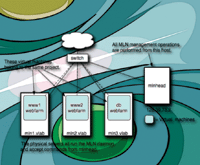
servers are just called "server nodes”. Consider the setup shown in Figure 1.
Let’s start with the server nodes. First, we need to
accept connections from the head server. Second, we need to make clear which
"name” the particular server should be known as in the MLN projects that
follow. This can be either an IP address or a hostname that is usable from the
other servers. Third, we add an artificial memory limit as to how much RAM we
plan on using for virtual machines. This limit is not used by MLN other than
status information, but it helps the user see where he has more capacity for
additional projects. We add the following to the MLN configuration file
(/etc/mln/mln.conf) on each server node.
# MLN Configuration File
# we accept connections from the following server:
daemon_allow 128.39.73.2
# This server is know in the projects as:
service_host mln1.vlab.iu.hio.no
max_memory 1500
Next, we have to start the MLN daemon. If you want to run
it in the background and save the PID in a file, run the following command:
mlnhead:~# mln daemon -P /var/run/mln.pid -D
This might be added to an initialization file, so that it
automatically comes up at boot time. If instead, you would rather run the
daemon in the foreground by hand, you type:
mlnhead:~# mln daemon
On the head server, we also add which name the server
should be known as, in case we wish to run virtual machines on that server as
well. Furthermore, we need to add a line for each server node for the
collection of status information and assign it an arbitrary group. This is the
resulting addition to the MLN configuration file (/etc/mln/mln.conf) on the
head server:
#/etc/mln/mln.conf
service_host mlnman.vlab.iu.hio.no
daemon_status_query mln1.vlab.iu.hio.no production
daemon_status_query mln2.vlab.iu.hio.no production
daemon_status_query mln3.vlab.iu.hio.no production
There is no need to run the MLN daemon on the head
server. Now that the daemons are running on all the server nodes, we can test
the setup with a simple status query from the head server:
mlnman:~# mln daemon_status -s
Server                #proj #vms Mem.Used Mem.Ava Groups
--------------------------------------------------------
mln1.vlab.iu.hio.no     0    0        0    1500   production
mln2.vlab.iu.hio.no     0    0        0    1500   production
mln3.vlab.iu.hio.no     0    0        0    1500   production
--------------------------------------------------------
Total:                 n/a  n/a      n/a   4500
The results show the response from all the server nodes.
Omitting "-s” will produce more output. The groups can be used to limit the
status query if you have many servers. If all the servers respond properly, we
are ready to turn our attention back to the MLN projects. Modifying a project
so that it is distributed across several machines is relatively simple. You add
a keyword to each host where the virtual machine should be placed. We write a
new version of the MLN project from above:
global {
    project webfarm2
}

# We use superclasses to group configurations together.
# The common superclass contains most VM-specific settings
# and host configurations, such as users and groups.

superclass common {
    xen
    term screen
    memory 128M
    template ubuntu-server.ext3
    size 2G
    nameserver 128.39.89.10
    network eth0 {
       netmask 255.255.255.0
       gateway 128.39.73.1
    }
    users {
       john j9faj872dHda
    }
    groups {
       admin {
          john
       }
    }
}

host www1 {
    superclass common
    network eth0 {
       address 128.39.73.101
    }
    service_host mln1.vlab.iu.hio.no  # <- Note the host definition
}

host www2 {
    superclass common
    network eth0 {
       address 128.39.73.102
    }
    service_host mln2.vlab.iu.hio.no  # <- Note the host definition
}


host db {
    superclass common
    size 3G
    network eth0 {
       address 128.39.73.102
    }
    service_host mln3.vlab.iu.hio.no  # <- Note the host definition
}
Some adjustments have been made to this project. Since we
don’t have a back-end network, all three virtual machines are on the same LAN
and the Web servers have only a single network interface. This removes the need
for the extra superclass, as the project becomes simpler. You could create
another tier of servers on a back-net and put the "db” virtual machine there.
We do all management tasks from the head server, even if no virtual machines
are placed there in this particular project. To build the project, you type the
following on the head server:
mlnhead:~# mln build -f webfarm2.mln
MLN will now contact every server involved in this
project and send them their copy of the configuration file. This then causes
each machine to start building the configuration on that machine. Once all
servers have started building their part, MLN goes into a loop and queries for
their results. This means that the building actually happens in parallel and
that the time it takes to build this project is divided by the number of
machines it is being run on. Starting and stopping the project is also done the
same way as before and also from the head server:
mlnhead:~# mln start -p webfarm2
Collecting reports from servers...
[ output from mln1.vlab.iu.hio.no ]
| Starting www1.webfarm2 in screen
[ output from mln2.vlab.iu.hio.no ]
| Starting www2.webfarm2 in screen
[ output from mln3.vlab.iu.hio.no ]
| Starting db.webfarm2 in screen
This command causes all virtual machines belonging to the
webfarm2 project to be started on all of the different physical servers. The
name of each virtual machine is "hostname.project”. This is not to be mistaken
for any domain name. Repeating the status query from above should now produce a
different result.
Very Large Projects
We have seen how to create projects both on a single
machine and distributed among several servers. But what if you want to build a
very large project, say a computing cluster, of 90 virtual machines?
Superclasses in the project file can make it simple to cut down on the number
of lines in a project, but in this scenario it starts to become tedious and
difficult to write the project without making mistakes. The biggest challenge is
to make sure the distribution of virtual machines across the physical servers
is how you want it.
The solution we will show here will make use of MLN’s
plug-in system. With it, you can write your own extensions to the MLN syntax or
its features. One example is extending the virtual machines file system
configuration, like writing a plug-in for a piece of software, say Apache, and
setting Apache parameters in the MLN project file. Another example is to let
the plug-in give more powerful features to the MLN project file rather than
change anything on the virtual machine file system.
Plug-ins are currently written in the Perl programming
language. All the plug-ins must be placed in a directory that is visible to
MLN, usually /etc/mln/plugins. They do not have to be loaded for each
particular project but will be there automatically. The name of the plug-in
will match the name of the file. So, if your plug-in file is called
"myplugin.pl”, it will be perceived as "myplugin”. Inside the plug-in, you
define subroutines that are to be executed either directly after MLN parsed the
project file or during the configuration phase, where the plug-in will have
access to the virtual machine file systems. The author of the plug-in does not
have to be concerned with extending MLNs syntax. That happens dynamically by
the parser. All the information about the project is visible to the plug-in,
but it is usual for the plug-in to expect to have a block of their own inside
the project.
The "autoenum” plug-in (Listing 1) functions like a
for-loop. Directly after parse time, it looks for a block called "autoenum”
inside the global block of the project. There it finds the parameters of how
the plug-in is to function. Its main purpose is to extend the project with a
number of virtual machines.
Here is a MLN project consisting of 90 virtual machines
spread out over 45 physical servers:
global {
    project mycluster
    autoenum {             # <-- Note that autoenum is a plug-in
       superclass cluster_node
       numhosts 90
       address auto
       addresses_begin 150
       net 128.39.73.0
       service_hosts {
          #include /root/servers.txt
       }

}
    $gateway_ip = 128.39.73.1
    cluster {              # <-- Note that Cluster is a plug-in
          head node1
       }
    }
}
superclass cluster_node {
    template ubuntu_mpi_tourque.ext3
    memory 312M
    free_space 1G
    network eth0 {
       gateway $gateway_ip
    }
}
The way this works is that the plug-in is executed right
after the project file is parsed. The plug-in will then add virtual machines to
the project based on the settings in the autoenum-block. All hosts will inherit
from the superclass called cluster_node, where the most common settings, such
as the file system template to use and the amount of memory to use, are found.
The autoenum plug-in will also assign IP addresses to each host beginning at
150. The list of service_hosts to use is written to a file "/root/servers.txt”
and included by MLN at parse time. You could write all the service host names
directly into that block, but we did it this way for simplicity. You can put an
arbitrary number of virtual machines on each server this way. The default behavior
is one virtual machine per server, but in our case the format of the file is
the following:
mln1.vlab.iu.hio.no 2
mln2.vlab.iu.hio.no 2
...
A second plug-in, called "cluster” is different from
"autoenum”. It is responsible for editing the configuration files on the
virtual machine file system belonging to that particular template so that the
cluster software used will function directly once the cluster is started.
Notice how short this project is and that it, in fact, is independent of the
size of the cluster. If you want a larger cluster, simply increase the
"numhosts” keyword in the autoenum plug-in. It is now possible to build and
manage very large projects but still keep a small and concise description of
what you want.
The only challenge to this kind of project is to make
sure each one of the physical servers is configured and running.
Future Work
Virtualization provides a way to abstract system
configuration away from the physical machine to which it is connected. MLN
tries to amplify this by abstracting the configuration of many machines. It
provides a way to hide information that is common between systems and to focus
the configuration on the issues that are important. There is an ongoing
discussion in the Usenix Large System System Configuration group (lssconf)
about how to describe system configurations and how to build system
configuration tools. MLN is exploring some of these questions by providing a
platform to describe system configurations that focus on the essential details.
This leads the development of MLN towards more plug-ins as a way to encapsulate
behavior. This also allows systems administrators to explore the definition of
roles of servers and to explore how roles can be applied to ongoing autonomous
computing research.
Conclusion
In this article, we have shown a brief example of what
MLN can do. We think that MLN is a convenient way to express a system
configuration, which can be deployed and tested easily. Having a simple way to
create a test deployment of a system is quite valuable. With the recent
improvements in virtual performance, the same MLN configuration that is used as
a test bed can be deployed into production service. By reducing the details
that you have to pay attention to, MLN reduces the amount of time it takes to
test a new idea. We hope that tools like MLN can help you deploy test
configurations and improve the reliability of your systems.
Resources
1. MLN project -- http://mln.sourceforge.net
2. Xen project -- http://www.xensource.org
3. UML project -- http://user-mode-linux.sourceforge.net/
4. Qemu project -- http://fabrice.bellard.free.fr/qemu/
5. "6 Virtualization Contenders” by Paula Rooney (Dr. Dobb’s) -- http://www.ddj.com/dept/linux/193501359
6. "Red Hat, VMware Expand Cooperation on Virtual Front”
by Paula Rooney (Dr. Dobb’s) -- http://www.ddj.com/dept/linux/193600881
7. "XenSource to Ship Windows, Linux Platform” by
Paula Rooney (Dr. Dobb’s) -- http://www.ddj.com/dept/linux/193502117
8. "Virtualization: A Utility Approach to the Data
Center” by PolyServe (Sys Admin) -- http://whitepaper.samag.com/cmpsamag/search/viewabstract/84796/index.jsp
9. Wikipedia: Virtualization --
http://en.wikipedia.org/wiki/Virtualization
10. Wikipedia: Comparison of virtual machines -- http://en.wikipedia.org/wiki/Comparison_of_virtual_machines
11. The Stanford collective group -- http://suif.stanford.edu/collective/
12. NetBSD presentation -- http://www.netbsd.org/gallery/presentations/jlam/xen.html
13. Lssconf -- http://homepages.informatics.ed.ac.uk/group/lssconf/
Kyrre Begnum is a PhD student at Oslo University College.
He has received a Master’s degree from the University of Oslo. He is lecturing
in the field of intrusion detection and firewall security and can be reached
at: kybe.begnum@iu.hio.no.
John Sechrest has many years of experience in teaching
systems administration at the Oregon State University. He has also started an
Oregon-based ISP and worked there for several years. He currently works doing
new business development work and can be reached at:
sechrest@users.sourceforge.net.
|