[Click image to view at full size]
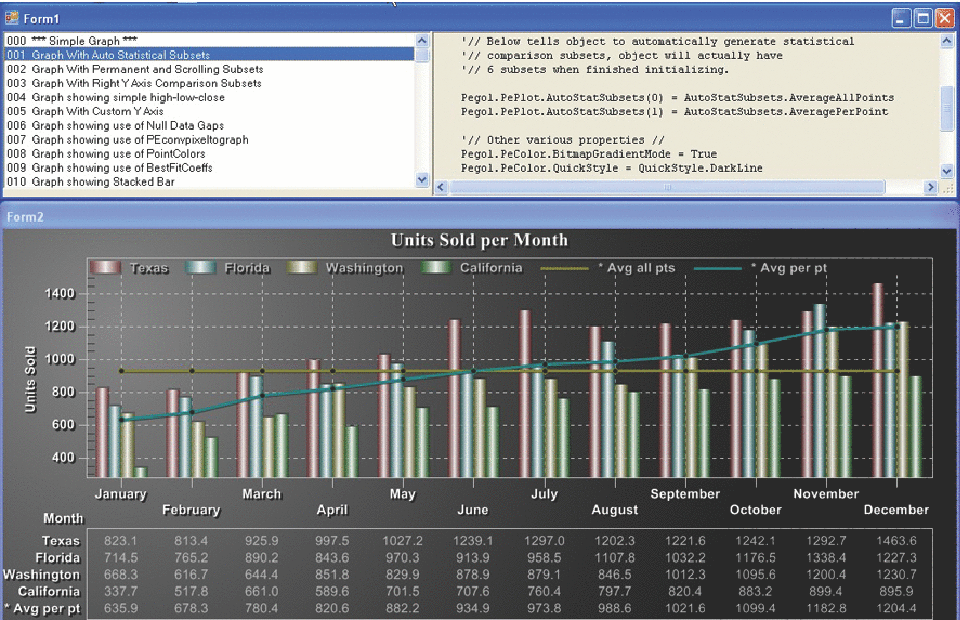
Figure 1: Gigasoft product demo.
Dr. Dobb's Journal April 2007
Starting in the late 1970s, my company started marketing a statistics package called "Microstat." Microstat began its life written in Northstar Basic, and then it was ported to Microsoft's Basic80, and then to C in the 1980s. Several years ago, while writing a Visual Basic .NET book, I began thinking about rewriting Microstat—again. Given the lineage of Microstat, my design goals were fairly simple:
Given that my writing efforts at the time were centered on Visual Basic, which became fully OOP-compliant with Visual Studio.NET, the language choice for the rewrite was simple enough. Updating the GUI aspects of the package in that programming environment was also a no-brainer for the most part. The resources that come with Visual Studio make building a GUI interface easy.
Retaining Microstat's ease of use was especially important. After all, any statistics package worth its salt should give the same results as any other package for a given dataset. The difference is how you get from the raw inputs to the final results. Teaching statistics is hard enough without having to teach how to program a statistics package at the same time.
For a variety of reasons, however, the original Microstat never had very good graphics. (CGA displays were the best one could assume in the Microsoft DOS days of the 1980s!) Yet, the old adage that a picture is worth a thousand words is especially true when you're trying to teach statistics to beginning students. I needed the graphics to knit easily into the rewrite while maintaining the ease-of-use of the old software. I also knew I needed to add more robust graphics capabilities, and that requirement gave rise to my choice—write what you need yourself or buy a graphics package and integrate it into Microstat.
Actually, the graphics demands for Microstat were fairly simple and could be addressed with simple two-dimensional scatter plots and line graphs. After a little pencil pushing, I figured I could implement the two basic graph types in about two weeks. (Yes, I know...you could do it in one day, but I tend to err on the high side when estimating deliverables.) I then did a little more pencil pushing, calculating what my time would cost for two weeks of effort. The cost for two weeks of my time became my baseline cost for considering a commercial off-the-shelf (COTS) graphics package. Now all I had to do was spend a little time with an Internet search engine and look for COTS graphics packages that fulfilled my requirements:
I ended up considering several packages for further investigation. Most of the graphics packages had free product demos, which were either downloadable or could be run on the Web. In some cases, the source code for the demo was available. (For what it's worth, I think all companies would be well-served if they'd provide source code for their demos. It's a quick and easy way to judge how difficult it might be to use the package.) I downloaded several trial packages and gave each a workout. After looking at the feature sets and demo/sample source code that was available and considering my program requirements, I made my choice.
I ended up selecting the ProEssentials graphics package from Gigasoft (www.gigasoft.com).
ProEssentials has several versions of its graphics package available, from the Lite version, which is limited to 1000 data points, to its Pro version, which has no data limitations. All versions were well below my price-point calculation for what I could afford to pay. Given that the prices were within budget, I then considered the feature set of each package. Gigasoft's demo gives a good idea of what the package can do, and Table 1 summarizes the features presented in the demo. The numbers in Table 1 are not exhaustive, but they do show the fundamental graph flavors that are available. Given the many properties that are available for each graph type, there are literally thousands of permutations on these basic graph types.
| Graph Category | Examples |
| Simple | 34 |
| Scientific | 35 |
| Polar | 6 |
| Pie | 4 |
| 3D and Wire Frame | 12 |
One nice feature about the Gigasoft demo is that you can examine the source code that generates each of the various graphs; see Figure 1. There are three windows in the demo:
You can scroll through the code that produced the graph in the code window. The demo, therefore, also was quite helpful in making my purchase decision. This was true because I could get a feel for the complexity associated with implementing my specific graphics needs by simply looking at the source code for each needed graph type. After spending a little time examining the source code for the features I wanted, I selected and purchased my package.
By spending a little time with the demo code, I was able to add a little "gee-whiz" factor to my statistics package. Figure 2, for example, shows a sample run of the binomial distribution. Of course, the numbers are the same as those found in the DOS versions, but the new GUI look shown in the figure is a huge improvement over the old command-line version.
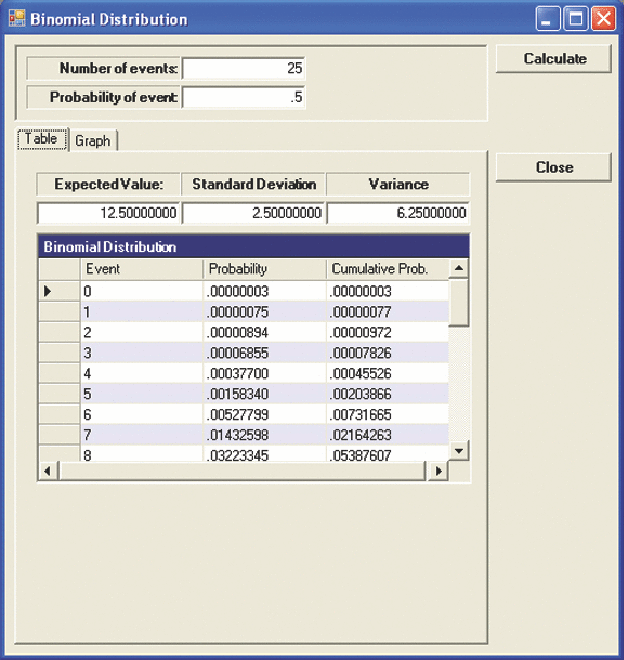
Notice the Graph tab in Figure 2. The graphics tab is new and accesses the implementation of the ProEssentials graphics representation of the data presented in the table in Figure 2. Clicking the graphics tab produces the output in Figure 3.
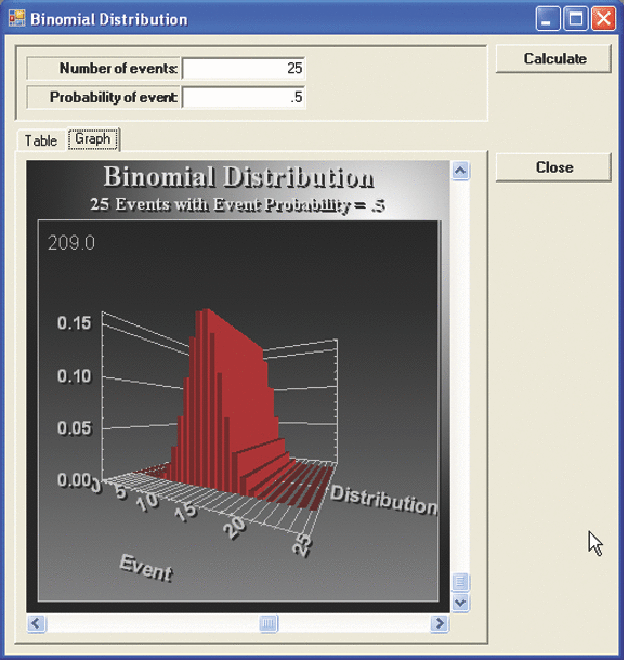
I had never thought much about using 3D graphics, but it was so easy to implement, I figured, "Why not?" Notice the scrollbar controls on the graph. The user can scroll the image to virtually any viewing angle. There is no flicker or "jerkiness" while the image is scrolled and updated. Even an image with 40,000 data points scrolls very smoothly.
Another ProEssentials feature I liked was that I did not have to add my own output routines for any of the graphics images. Figure 4 shows some of the runtime options available to users from Figure 3. The graphics menu is activated by simply right-clicking on the graph image.
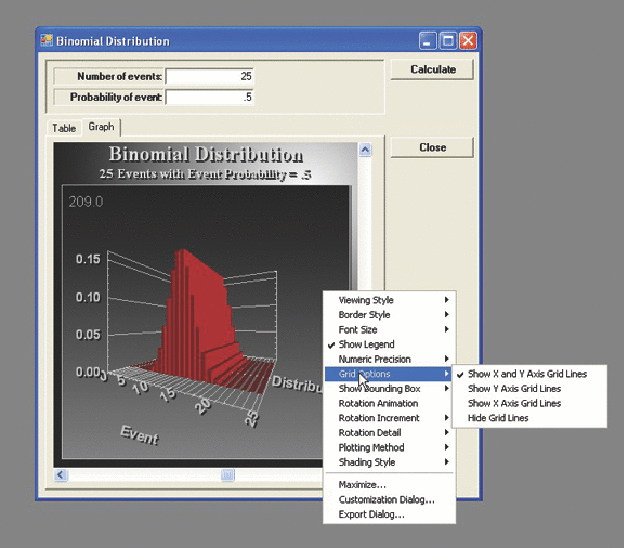
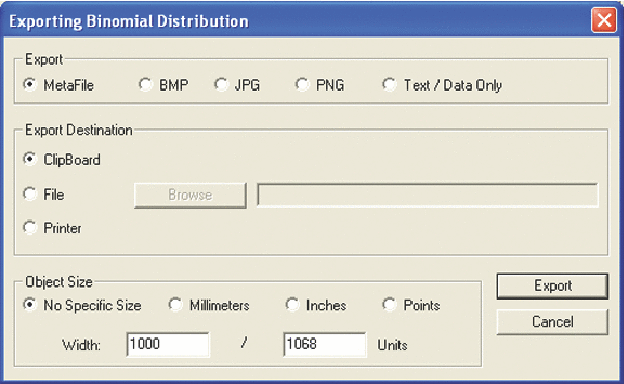
All of the menu choices in Figure 4 are runtime options users can select. If the Export Dialog shown at the bottom of the first menu in Figure 4 is selected, users are presented the dialog box in Figure 5. As you can see, the image can be exported to a file in different formats, copied to the clipboard, or directed to a printer. How much programming effort did it take on my part to implement these features? Zero. Every graph type has a similar set of menu options. (The exact list of menu options presented to users depends upon the specific type of graph being shown.)
How hard was it to produce the graph in Figure 3? It was embarrassingly easy. In fact, I started writing the code by simply cutting-and-pasting the 3D graph code from the sample demo source file that comes with the package. The demo source code is well-commented and is relatively easy to follow. After setting the data arrays to reference the appropriate data source in my code, the graph worked on the first try. Flushed with that success, I designed my own graphics objects based on the ProEssentials engine and proceeded to add both two- and three-dimensional graphics objects to the package where needed.
Another benefit is that the package integrates nicely with Visual Studio, just like any class you might write yourself. Of course, the package takes advantage of Intellisense when working with the graphics objects. (That is, using a ProEssentials graphics object with the dot operator presents a list of the methods and properties that are available for that object.)
Phone-in support is available with the package, although I never had the occasion to use it. In most cases, reading the Help files answered any programming questions I had. I did e-mail technical support with a question or two, and always received a quick and (more importantly) correct response. Many people stress the importance of phone-in support. While I agree that good support is important, in my mind, if the product is good and the documentation worthwhile, I shouldn't need phone-in support. Happily, ProEssentials falls into this category.
One technical element that I probably should have asked about, but didn't, was why the package uses the float data type for input into the plotting data arrays. In most programming languages (C, C#, C++, Visual Basic .NET), the float data type is a 32-bit data item constrained to a numeric range of approximately (plus or minus) 1.0×1038. Given that floating-point calculations are still handed off to the math coprocessor built into the Pentium-class family of CPUs, which use 64-bit registers, I wonder if using the float data type causes a small performance hit versus using the double data type. That is, does the promotion cast (data widening) going into the math coprocessor (going from 32 to 64 bits) and the subsequent demotion cast (data narrowing) coming out of the coprocessor (64 bits back to 32 bits) cause any performance hit? If it does, the hit must be fairly minimal given how smooth the 3D scrolling is.
Given my original design considerations, I am happy with my decision to use Gigasoft's ProEssentials graphics package. The package has more features than I will ever likely need, and supports OOP in general (and .NET specifically) quite nicely. Programming with the package is easy to do and the demo package is a real help in understanding how the package works. My guess is that most programmers who spend an hour or two single-stepping through the demo code will understand the package well enough to start writing their own code using the package.