Dwayne Phillips works as a computer and electronics engineer with the United States Department of Defense. He has a Ph.D. in electrical and computer engineering at Louisiana State University. His interests include computer vision, artificial intelligence, software engineering, and programming languages.
This is the third in a series of articles on images and image processing. The first article discussed image input and the Tag Image File Format (see the March 1991 CUJ). The second discussed two types of image output (see the May 1991 CUJ). This installment covers another type of image output — halftoning, or displaying and printing gray-scale images using only black and white.
The previous installment showed how to display images on EGA and VGA monitors. The system presented in that article, however, doesn't work for CGA or monochrome monitors. For both those monitors, and for printing images, the best answer is halftoning.
Halftoning involves displaying shades of gray using only black and white spots, much the way newspapers print photographs (at least in the days before USA Today). Some techniques use one size of spot and make gray shades by putting the spots closer together or farther apart. Other techniques use a larger spot and only partially fill in that spot (dithering). All of these approaches, however, come down to spots and the absence of spots.
I give examples here of using halftoning to generate three types of image display. First, I display images on a CGA and monochrome monitor by turning pixels on or off. Then, I use the same on/off technique to print an image on a simple character printer using either a * or a space. Finally, I employ a dithering technique to print an image on a 300 dot-per-inch Hewlett-Packard DeskJet printer (directly compatible with the LaserJet series).
The simplest form of halftoning uses only ones and zeros. You examine a gray-shade image and place the ones in the output image depending on the input image brightness. If the input image has a bright spot, the output image will have most of the pixels set to 1 in that area. If the input image has a dark spot, then most of the pixels in that area of the output image will be set to 0. When printing, you set the output image values opposite to this method because a spot on the printer is dark and a space is bright. Figure 1 shows the basic halftoning algorithm. Reference 1 is the source of the original algorithm.
The basis of the algorithm is an error-diffusion technique. When the "error" reaches a certain value, you turn a pixel on and reset the error. If the error is not great enough, leave the pixel turned off. Errors result from approximating a gray shade image with only ones and zeros.
Figure 1 shows the input image I with R rows and C columns. Ep(m, n) is the sum of the errors propagated to position (m, n) due to earlier 1 or 0 assignments. Eg(m,n) is the total error generated at location (m,n). C(I,J) is the error distribution function, whose size and values I set experimentally for the "best" results. The elements in C must add up to one. The authors of reference [1] set C to be a 2x3 matrix with the values shown in equation 1:
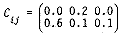
The results from using this error-diffusion method have been satisfactory. You may want to experiment with the equations. Equation 2 shows that Ep(m,n), the error propagated to location (m,n), is the combination of the error distribution function C and the error generated Eg(m,n).
After calculating the propagated error Ep(m,n), you add it to the input image I (m,n) and give the sum to T. Now compare T to a threshold value, which is usually set to half the number of gray shades. For instance, for an image with 256 gray shades, set threshold=128. If you don't like the results, then experiment with different values for the threshold. If T is greater than the threshold, set the (m,n) pixel to 1 and reset the generated error Eg(m,n). If T is less than the threshold, set the (m,n) pixel to 0 and set the generated error Eg(m,n) to threshold.
Though this algorithm works well, it seems to take forever. The halftoning process slows the display process. On my 10-MHz 286, CIPS displays a 400x400 image in about one minute. The same size image requires about 14 minutes with halftoning. The slowdown results from the six floating-point multiplications and six floating-point additions for every pixel being displayed. A faster machine or a math coprocessor will do much better.
Listing 1 shows the code that implements the halftoning algorithm. The function display_using_halftoning sets the vertical and horizontal display mode parameters, exactly what the display functions in the previous installment did. The several if(print == ...) statements allow for printing to a character printer. The loop over horizontal and vertical reads in 100x100 image arrays and calls the half_tone function.
The function half_tone contains the algorithm in Figure 1. First the code initializes the error-distribution function in the array c. Next it sets the error arrays eg and ep to zero (step 1 of the algorithm). The loops over m and n implement steps 2 and 3 of the algorithm. The code performs the total propagated error calculation of step 4 inside the loops over i and j. The code calculates t and then decides whether to set the pixel to 1 or 0. The invert option allows you to halftone a negative image, as discussed last time. The code displays the pixel as soon as it decides its value.
Printing An Image
To print an image array on a character printer, you give the print argument the value 1. The code will then set the in_image array values to ones and zeros instead of displaying the pixels on the screen. The last statement of the half_tone function sends the 1-0 image array to the function print_half-tone_array. print_halftone_array examines each row of the image array and sets the elements of a character string to either * or space. This string goes to the printer 100 times.The printout does not look like much until you trim the printed pages and tape them together. If your printer has different font sizes or a condensed printing mode, you can experiment with the code and print more than 80 characters per line. You may also have to counter image distortion, where the height of the vertical lines on the printer may be greater than the width of the horizontal character. In this case the image appears tall and thin (squeezed). You can compensate (coarsely) by printing each character twice.
Dithering
In dithering you create shades of gray by setting spots in a matrix. For example, an 8x8 matrix has 64 locations. Printing an ink spot in all 64 locations produces a dark square on the page. By printing an ink spot in half of the 64 locations, you create a brighter square on your page. Not printing in any of the 64 locations leaves a bright square on your page (Figure 2) .The code in Listing 2 prints an image to a Hewlett-Packard DeskJet printer using dithering. The code uses an 8x8 matrix to print each pixel from the image, allowing 64 shades of gray. This figure is an improvement over last month's display functions, which displayed only 16 shades of gray. The drawback, however, is that you can print only a 200x200 pixel area of the image. Since the DeskJet prints at 300 dots per inch, using eight dots for one pixel allows you to print only 37 pixels per inch (or about 200 per page in width, wiht a little room for margins). The DeskJet is code-compatible with the LaserJet series, so the output should work on most HP-compatible laser printers. If it does not, substitute the software commands from your printer's manual into the code.
The method used in Listing 2 is not straightforward. Since the printer is a raster-scan device, you cannot print an 8x8 matrix (1 pixel), then another 8x8 matrix (the next pixel), and so on for 200 8x8 matrices (pixels). You must print the top row of 200 consecutive 8x8 matrices, then the second row of the 200 8x8 matrices and so on. Figure 3 attempts to show the method.
Listing 2 begins with the patterns array. Each row in the patterns array represents a gray shade. The 0th row is all 255 characters (1111 1111 binary), which print all spots. The 63rd row is almost all zeros (0000 0000 binary), which does not print any spots. The code inserts these values into a print buffer for printing.
The function print_graphics_image takes in two image arrays. You must join the two 100x100 arrays to print a single row with 200 pixels. First, you read in the two 100x100 arrays. (If the invert option is on, the code inverts the gray shades in the arrays.) Next, you convert the gray shades in the arrays to 64 shades of gray. The code loops over i and j to join the 100-element rows from the two image arrays into one 200-element row, which is then passed to the function print_original_200_row for printing. The second half of print_graphics_image repeats the process for the other two 100x100 arrays.
The function print_original_200_row (Listing 2) creates a raster scan array from the 200-element array. The raster scan array row has eight rows with 200 elements each. One column of row has eight 8-bit numbers. This arrangement produces an 8x8 matrix of bits which creates the desired gray shade. Printing the top row of of this 8x8 matrix with the top row of the other 199 8x8 matrices occurs inside the loops over i and j. The code copies the current row of row into the array c and then calls the function print_bytes.print_bytes prints out the bytes as dots in graphical mode.
Modifying cips.c
Figure 4 shows the new CIPS main menu. The cips.c source needs only two new case statements to handle the new functions. Figure 5 shows the case statements 5 and 6 added to cips.c. These cases are similar to the ones presented last month. The basic idea is to obtain all the parameters and then call the display function. The display functions do not interact with the user — separate user interface functions do that. If you write all new functions using this design philosophy, inserting new capabilities into the system will be easy.
Sample Output
Photograph 1 shows the boy image from the last installment displayed on a monochrome monitor using halftoning. The image is slightly squeezed. Monochrome monitors distort this way because mono pixels are not square. They are taller than they are wide. Photograph 2 shows the boy image as displayed on a CGA monitor using halftoning. Though this image looks much nicer here than on the monochrome display, you can't see as much of the boy as in the VGA display. CGA (and mono) show only 320x200 pixels instead of 640x480.Photograph 3 is a picture of the graphics-image printout of the boy image using dithering. The dithering produces 64 shades of gray instead of two with monochrome and CGA or 16 with VGA and EGA. Of course CIPS can print only a 200x200 pixel area of the image. Photograph 4 is a closeup photo of the boy image produced by a character printer using halftoning.
Next Time
The next article will discuss the histogram of an image and histogram equalization. The histogram is a bar graph showing the number of times a pixel value is in an image. Histogram equalization is a technique that spreads the histogram over the entire range of pixel values. This improves the contrast in displayed images and prepares images for processing.
Reference
[1] "Personal Computer Based Image Processing with Halftoning," John A Saghri, Hsieh S. Hou, Andrew F. Tescher, Optical Engineering, March 1986, Vol. 25, No. 3, pp. 499-504.